•
For more detail information visit: https://cleantalk.org/my
Follow the following settings for best Cleantalk setup.
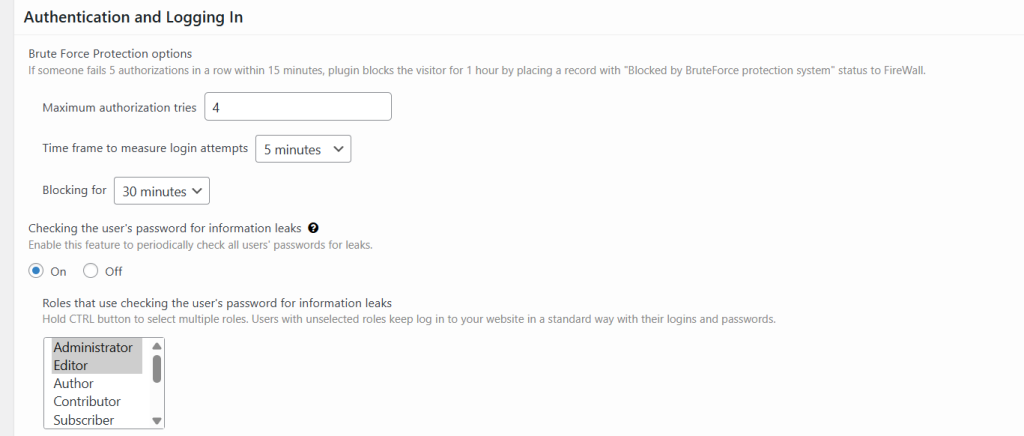
Brute Force Protection options
Set Maximum authorization tries to 4
Set Time frame to measure login attempts to 5 minutes
Set Blocking for to 30 minutes
Password leak check
Turn On
Apply to Administrator and Editor
Screenshot note
Keep Access Key hidden and never click “Show Access Key” in screenshots.
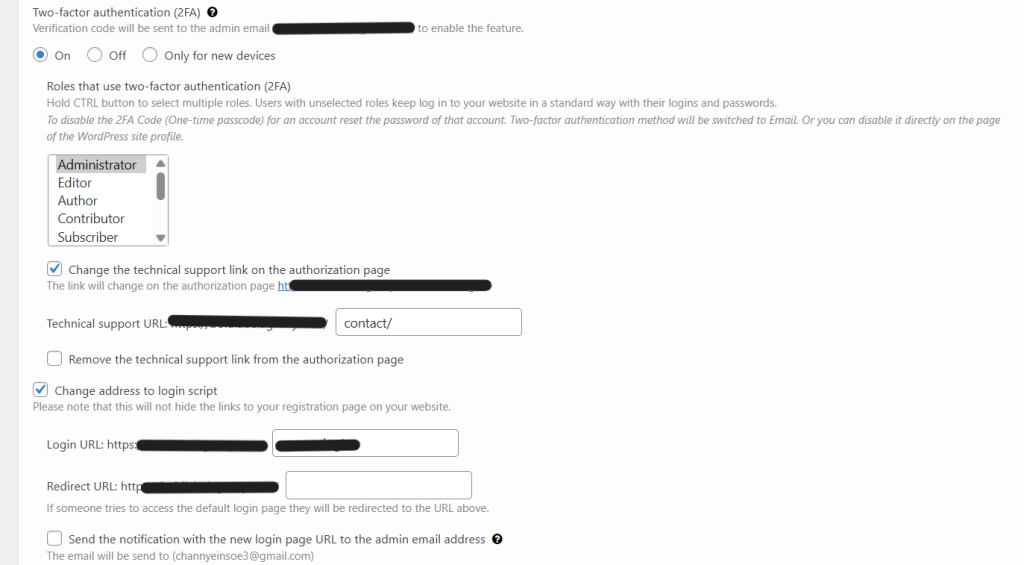
Two factor authentication (2FA)
Set to On
Select roles Administrator and Editor (save and refresh once)
Change the technical support link on the authorization page: ON
Technical support URL: contact/ (or) your contact page
Remove the technical support link from the authorization page: OFF
Change address to login script
Login URL: Set to a custom path you will remember: eg /no-one-will-know-my-login/
Use this new URL for future logins instead of /wp-admin/ or /wp-login.php Redirect URL: (leave empty)
Send the notification with the new login page URL to the admin email address: OFF
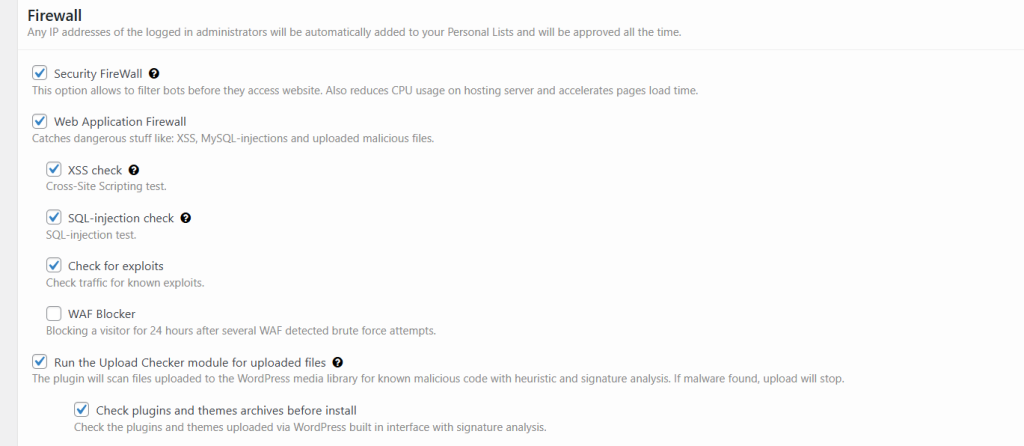
Turn On:
Security FireWall
Web Application Firewall
XSS check
SQL injection check
Check for exploits
Run the Upload Checker module for uploaded files
Check plugins and themes archives before install
Off:
WAF Blocker
Enable
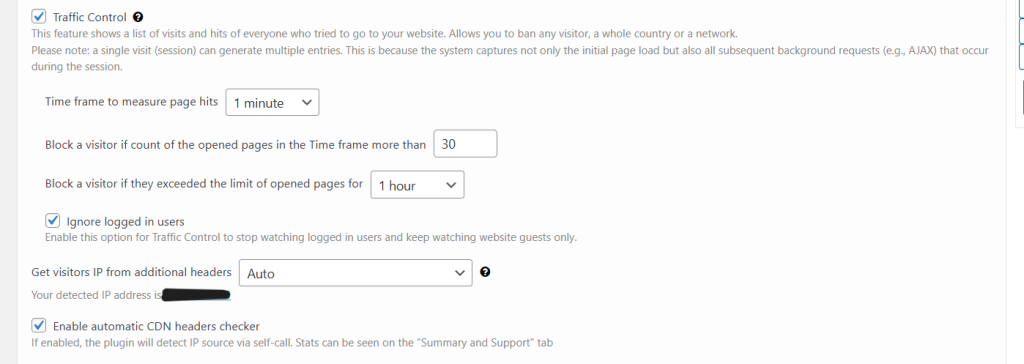
Traffic Control
Time frame to measure page hits: 1 minute
Block a visitor if opened pages in the time frame more than: 30
Block a visitor if they exceeded the limit of opened pages for: 1 hour
Logged in users
Enable Ignore logged in users
Visitor IP
Get visitors IP from additional headers: Auto
Enable automatic CDN headers checker: On
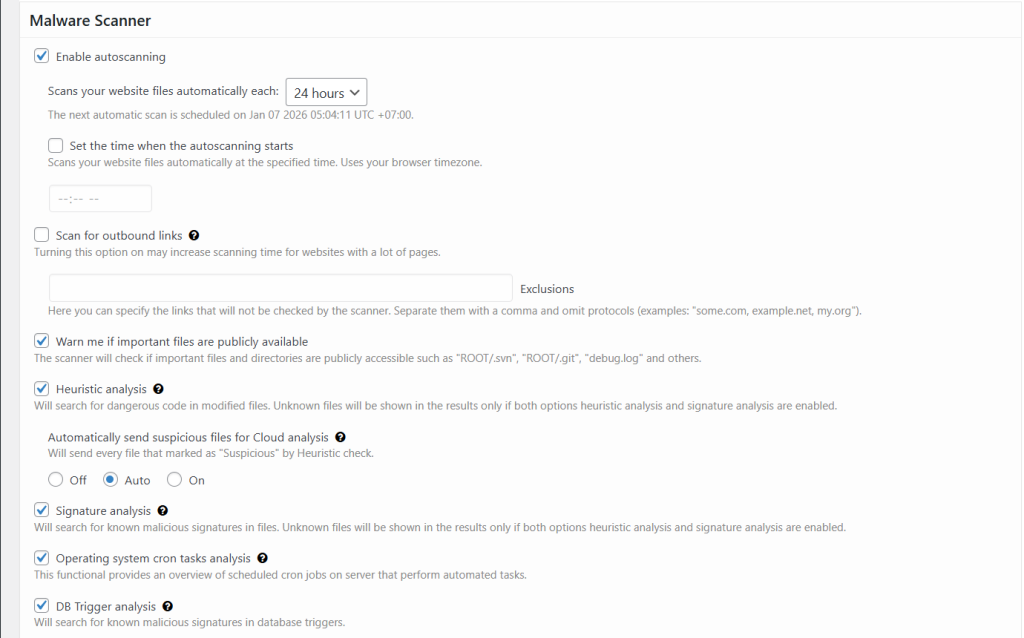
Enable autoscaning
Scans your website files automatically each: 24 hours
Warn me if important files are publicly available
Heuristic analysis
Signature analysis
Operating system cron tasks analysis
DB Trigger analysis
Cloud analysis
Automatically send suspicious files for Cloud analysis: Auto
Off
Scan for outbound links: Off (turn On only if you want this check)
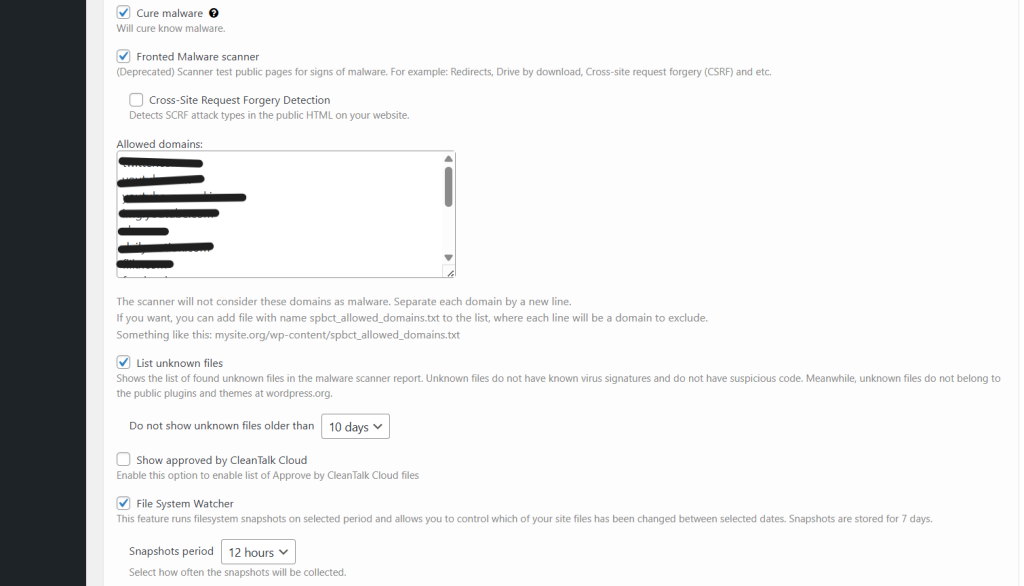
Cure malware
Frontend Malware scanner
List unknown files
Do not show unknown files older than: 10 days
File System Watcher
Allowed domains
Keep the default list
Add only domains you use (one per line)
Cross-Site Request Forgery Detection
File System Watcher: ON, 12 hours
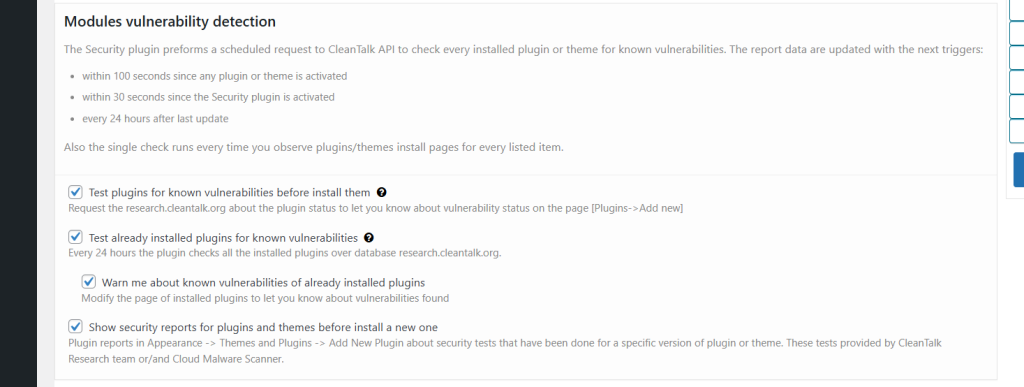
Test plugins for known vulnerabilities before install them
Test already installed plugins for known vulnerabilities
Warn me about known vulnerabilities of already installed plugins
Show security reports for plugins and themes before install a new one
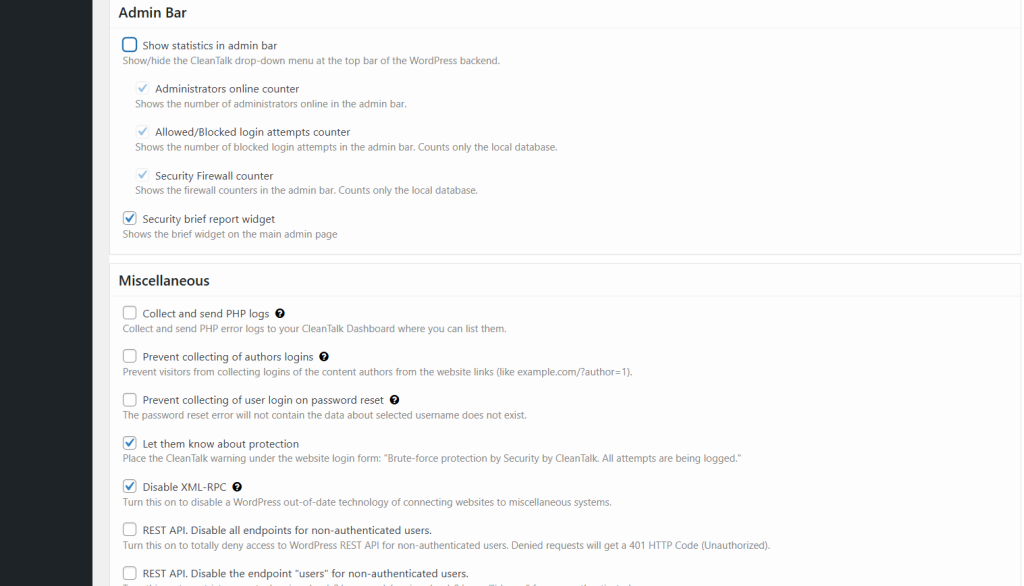
Admin Bar
Show statistics in admin bar: Off
Security brief report widget: On
Miscellaneous
Collect and send PHP logs: Off
Prevent collecting of authors logins: On
Prevent collecting of user login on password reset: On
Let them know about protection: On
Disable XML RPC: On
REST API disable all endpoints for non authenticated users: Off
REST API disable endpoint “users” for non authenticated users: On
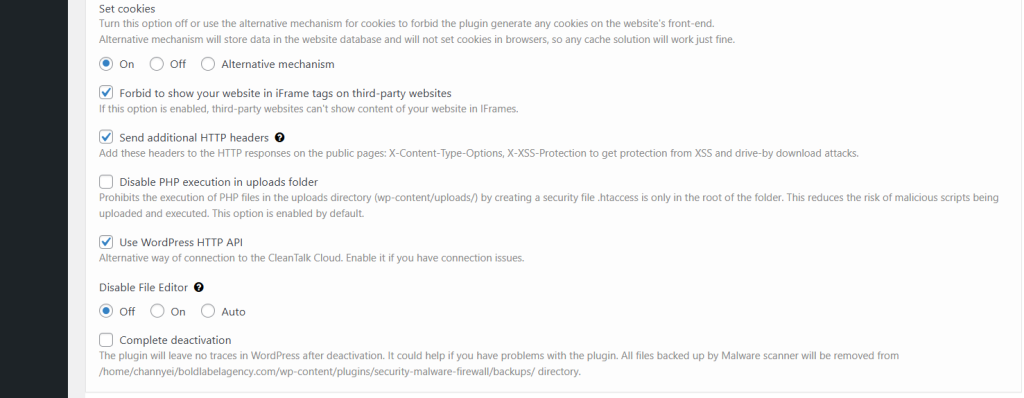
Set cookies: On
Forbid to show your website in iFrame tags on third party websites
Send additional HTTP headers
Disable PHP execution in uploads folder
Use WordPress HTTP API
Disable File Editor: On
Leave Off
Complete deactivation